Your computer used to be fast. Now it takes forever to start, the fan never stops, and web pages crawl. Before you buy a new one, try these fixes. One of our customers put it perfectly: we rescued her “from the insidious ‘planned obsolescence’ mindset of computer ownership.” Most slow computers can be made fast again — affordably.
Key takeaways
- Start with free fixes: restart, updates, startup items and storage space.
- The single biggest upgrade for an older computer is usually a solid-state drive (SSD).
- Rule out malware and failing hardware before spending money.
- Replace rather than repair when the system can’t run supported, secure software.
Quick fixes (free, 5–15 minutes each)
1. Restart properly
Many laptops “sleep” for weeks. A full restart clears memory leaks and finishes pending updates. On Windows, choose Restart rather than Shut down, because Fast Startup can preserve problems across shutdowns.
2. Install updates
Operating-system and driver updates fix bugs that cause slowdowns and security holes. Update your browser too.
3. Trim startup programs
On Windows, open Task Manager → Startup apps and disable anything you don’t need at boot. On a Mac, check System Settings → General → Login Items. Printer utilities, updaters and chat apps are common culprits.
4. Free up storage
Computers slow down badly when the system drive is nearly full. Aim to keep at least 15–20% free. Empty the trash, remove large old downloads, and move photo and video libraries to an external drive or cloud storage.
5. Tame the browser
Dozens of open tabs and old extensions can consume gigabytes of memory. Remove extensions you don’t recognize and close tabs you don’t need — or use the browser’s built-in tab-sleeping feature.
6. Check what’s using resources
Task Manager (Windows) or Activity Monitor (Mac) shows which apps use CPU, memory and disk. A single runaway process often explains everything.
Health checks (find the real cause)
7. Scan for malware
Adware and malware are a frequent cause of slowdowns, pop-ups and redirects. Use your built-in security (Microsoft Defender on Windows; macOS has built-in protections) and a reputable second-opinion scanner. See our malware removal guide.
8. Check drive health
Failing hard drives cause freezing, slow file access and eventually data loss. SMART status tools can reveal problems. If the drive is failing, back up immediately.
9. Check heat
Dust-clogged fans and dried-out thermal paste make processors slow themselves down to avoid overheating. Cleaning vents (and, for older machines, professional servicing) can restore performance.
10. Check the battery
Some laptops reduce performance when the battery is badly worn. Battery health is shown in macOS settings and in a Windows battery report.
Upgrades (best value for money)
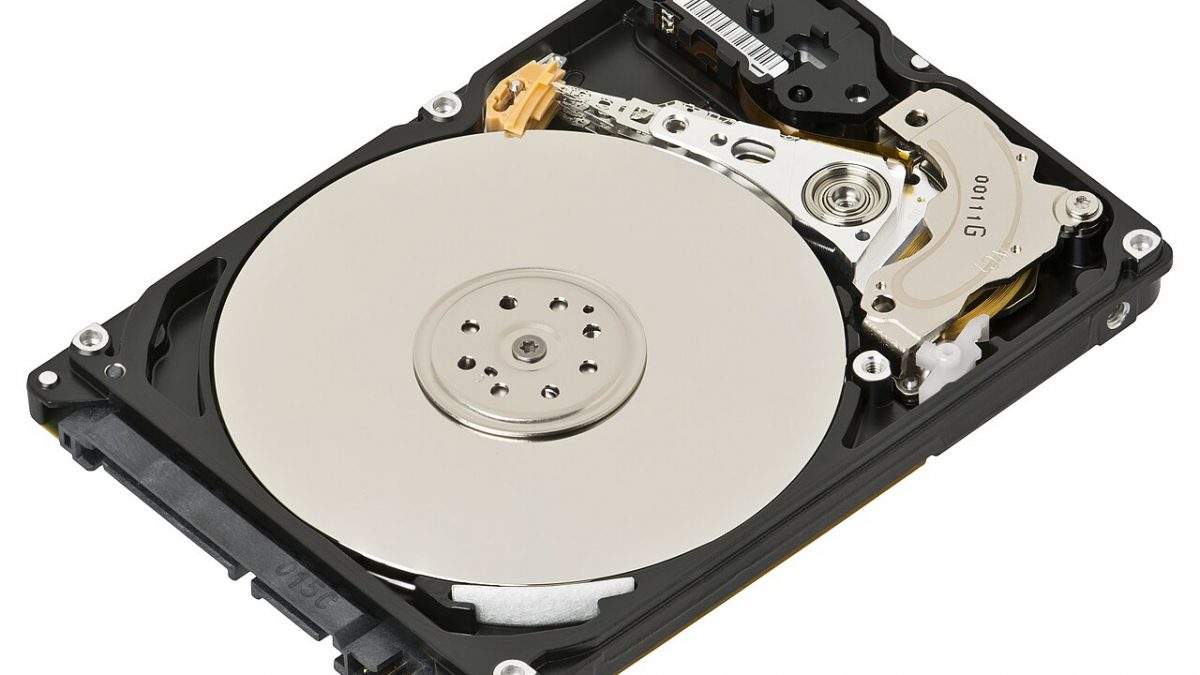
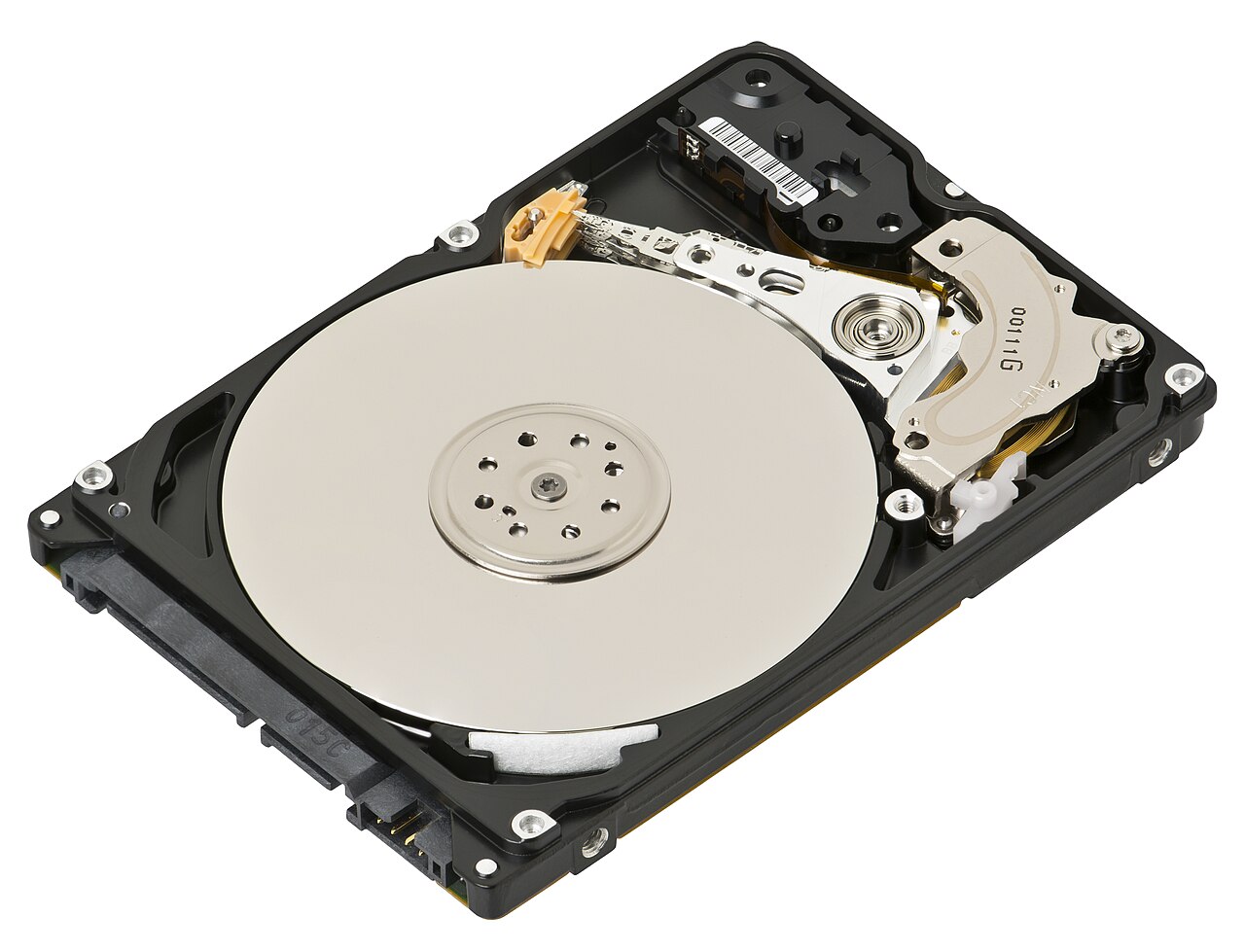
11. Replace the hard drive with an SSD
If your computer still has a spinning hard drive, a solid-state drive is the single most dramatic upgrade you can make: faster startup, near-instant app launches and lower power use. We clone your existing system so everything is just as you left it — only much faster.
12. Add memory (RAM)
Modern browsers and apps are memory-hungry. If memory is constantly full, more RAM helps — where the computer allows upgrades (many newer laptops have soldered memory).
13. Fresh installation
After years of installs and uninstalls, a clean reinstall of the operating system (with your files backed up and restored) can be like getting a new computer.
14. Improve the network, not the computer
If “the computer is slow” only on the internet, the problem may be Wi-Fi. Test speed with a cable plugged in. If it’s much faster, improve your Wi-Fi instead — see How Many Devices Can Your Wi-Fi Handle?
15. Know when to replace
Repair stops making sense when the computer can no longer run a supported, secure operating system, when the repair would cost more than about half the price of a suitable replacement, or when it simply can’t do what you need. Windows 10, for example, reached the end of mainstream support in October 2025, so older PCs that can’t run Windows 11 need a plan — a supported alternative or a replacement.
| Symptom | Most likely fix | Typical cost |
|---|---|---|
| Slow boot, slow app launch | SSD upgrade | $ |
| Slow with many tabs | More RAM / browser clean-up | $–$$ |
| Pop-ups, redirects | Malware removal | $ |
| Loud fan, random slowdowns | Cleaning, thermal service | $ |
| Can’t run a supported OS | Replacement (we migrate your data) | $$$ |
Frequently asked questions
Is it worth upgrading an old laptop to an SSD?
If it still has a spinning hard drive and can run a supported operating system, yes — an SSD is usually the most cost-effective performance upgrade available.
Do Macs slow down with age?
Macs slow down for the same reasons as PCs: full storage, too many login items, aging drives and newer software. Many can be revived with clean-up and, on older models, an SSD upgrade.
Will a factory reset speed up my computer?
Often, yes — but it erases everything. Back up first, or let a technician migrate your files and apps safely.
Prefer a flat price? Our Tune-Up & Virus Removal package covers most of the steps above.
Don’t buy a new computer yet
Let us check whether a tune-up or upgrade will do the job for a fraction of the price.